
How to File a T4 With the CRA: A Complete Guide


On February 26, a bakery owner with six employees generated six T4 slips, emailed them to staff, and closed her laptop thinking she was done. She wasn’t. The Canada Revenue Agency had received nothing.
Filing T4s involves three separate jobs that often get blurred together: preparing the slips, filing the T4 information return with the CRA, and giving copies to employees. Software can help with the first job. You still need to confirm the second. The third has its own rules and penalties.
Here’s how to file a T4 end to end: confirm who needs one, review payroll records, complete the slips, choose a filing method, submit the return, save the confirmation, and distribute employee copies. A checklist appears at the end.
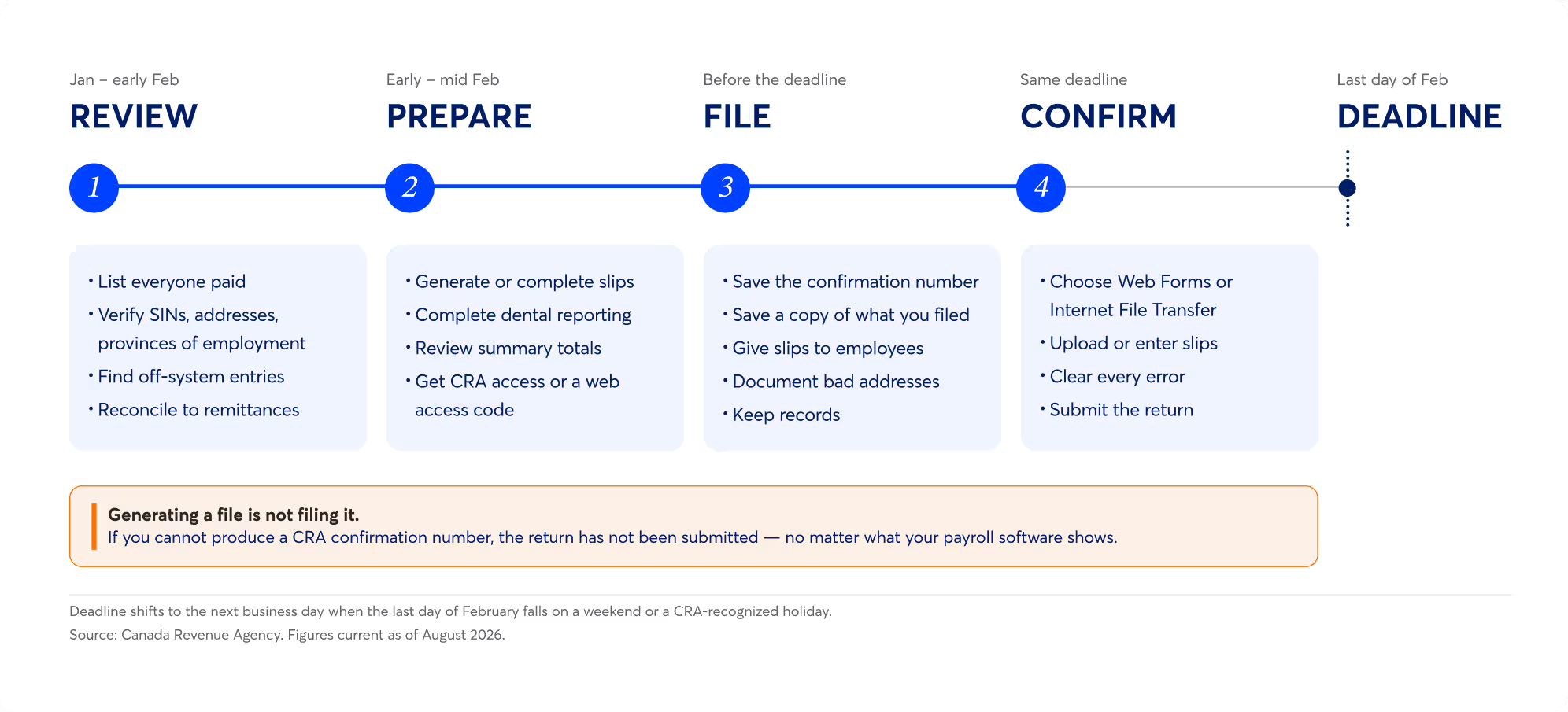
The T4 filing timeline
Four phases, one deadline. Preparing a slip, filing the return, and distributing copies are three separate jobs.
What is a T4, and who needs to file one?
A T4 slip is a Statement of Remuneration Paid. It’s the tax form that reports what you paid one employee during one calendar year, and what you withheld from that pay. You issue a T4 when you deduct CPP or QPP contributions, EI premiums, PPIP premiums, or income tax from an employee’s remuneration.
There is a second trigger, and it catches employers who assume small payments don’t count. A T4 is also required when you paid someone more than $500 during the year, even if you deducted nothing — unless an exception applies. That’s CRA administrative policy, and it’s the trigger small employers miss most often.
One exception runs the other way.
If you provide a current employee with a taxable group term life insurance benefit, you always issue a T4, even when the total remuneration for the year is $500 or less. A $180 benefit on a casual weekend employee still produces a slip.
Important definitions that appear throughout this guide:
- Remuneration is everything you pay an employee for their work, not just salary
- SIN is a social insurance number
- CPP and QPP are the Canada and Quebec Pension Plans
- EI is employment insurance. PPIP is the provincial parental insurance plan, which applies in Quebec.
What counts as reportable remuneration?
Employment income is broader than salary. Report:
- Salary and wages, including the employee’s earnings from overtime
- Bonuses, vacation pay, and retroactive pay
- Commissions
- Taxable allowances and taxable benefits
- Tips and gratuities you controlled and paid out
- Honoraria and certain other income you paid for employment
- Deductions withheld: CPP or QPP contributions, EI premiums, PPIP premiums, income tax
Income is reported for the calendar year in which it was paid, not the year it was earned. Employment income earned in December and paid on January 4 goes on next year’s T4.
When is a T4 the wrong form?
A T4 reports employment income. If you paid someone who wasn’t your employee, or paid a type of income the T4 doesn’t cover, a different slip applies. The CRA’s other forms each cover a different kind of payment:
- a T4A for fees for services and pension income
- a T5 for investment income
- a T5018 for construction subcontractors.
Pension payments, annuities, and retirement compensation arrangements do not go on a T4.
If you are unsure whether someone is an employee or a contractor, or which slip a payment belongs on, confirm it with a payroll or tax professional before you file.
When is the T4 filing deadline?
The T4 filing deadline is the last day of February following the calendar year you’re reporting. Both jobs are due that day: the information return has to be filed with the CRA, and your employees have to have their slips. One date, two obligations.
T4s always report a calendar year. If your business has a non-calendar fiscal year, your tax year and your T4 year are not the same thing.
When the last day of February falls on a Saturday, Sunday, or a CRA-recognized public holiday, the return is on time if the CRA receives it — or it’s postmarked — on or before the next business day. Treat that extension as applying to the CRA filing only. The CRA states the employee-copy deadline as the last day of February, full stop, so plan to have slips in your employees’ hands by then rather than relying on an extra day.
February 28, 2027 is a Sunday, so T4s for the 2026 calendar year are due Monday, March 1, 2027. Confirm the current year on the CRA website before you file, because this date moves.
Deadlines that are not the last day of February
Three situations replace the annual deadline with a shorter clock:
An employee leaving mid-year does not change your annual deadline. You still file their T4 with everyone else’s the following February. The CRA does suggest calculating year-to-date earnings and giving a departing employee a slip when they stop working for you, but that’s a courtesy step, not a separate filing date.
The responsibility doesn’t transfer
Using a payroll provider or a bookkeeper does not move the obligation off you. If the slips are wrong or the return is late, the employer is the one the CRA assesses. Ask your provider one direct question before February: “do you submit the return to the CRA, or do you hand me a file to submit?”.
A payroll service that prepares your slips has not necessarily filed them.
What information do you need before filing?
Gather three sets of information before you open any filing application: employer information, employee information, and payroll information. Most filing errors are collection failures, not data-entry failures — the number was never gathered, so it was never checked.
Employer information
- Your legal or operating name, exactly as it appears on your CRA statement of account
- Your business address
- Your payroll account number — 15 characters, made up of your nine-digit business number, the two-letter RP program identifier, and a four-digit reference number (example: 123456789RP0001)
- The calendar year you’re reporting
- CRA account access: a CRA user ID and password for My Business Account or Represent a Client, or a web access code
If you run more than one payroll account, treat each one as its own return. Totals do not get combined.
Employee information
For every employee who requires a slip:
- Full name, as it appears on their SIN record
- Current address
- Social insurance number
- Province or territory of employment
You are required to make a reasonable effort to get an employee’s SIN. An employee has to give it to you within three days of starting work, and if they don’t, you need to be able to show what you did to obtain it. The penalty for not making that effort is $100 per SIN.
If you still can’t get a SIN, file anyway. A missing SIN is not grounds to miss the deadline. File the slip without it, on or before the due date, and document what you did to try to obtain it.
Payroll information
For each employee you’ll need to document: employment income, commissions, bonuses, vacation pay, taxable benefits, taxable allowances, CPP or QPP contributions, EI premiums, PPIP premiums where they apply, pensionable earnings, insurable earnings, income tax withheld, and any pension adjustment.
You also need dental coverage information for every employee, including the ones you offer nothing to. For 2023 and later years, it is mandatory to report whether the employee — or any of their family members — was eligible on December 31 to access dental care insurance or dental coverage of any kind that you offered.
Two more collection notes. Gather everything for employees who left during the year; they are the most commonly omitted group. And if an employee worked in more than one province or territory during the year, you’ll need their earnings split by province, since the income needs to be reported according to where the employee earned it, which may mean preparing separate slips.
How to review payroll records before preparing T4 slips
Review payroll records before you generate slips, not after. Once a return is filed, fixing a number means an amended slip, a second submission, and a corrected copy to the employee. Before filing, the same fix is one entry.
Work through five checks:
- Confirm the employee list is complete. Start from every person you paid during the year, not from your current staff list.
- Reconcile each employee’s totals. Compare earnings and deductions against payroll registers, pay statements, benefit records, and year-to-date totals. You’re checking employment income, CPP or QPP contributions, EI premiums, income tax withheld, taxable benefits, and every other reportable amount against a second source.
- Hunt for payroll entries created outside the system. The manual cheque written when the payroll run failed. The year-end bonus paid from the business account. The commission was paid separately. If it wasn’t in the payroll system, it isn’t on the slip.
- Verify identity fields. Name, SIN, address, province of employment — for every employee.
- Compare employer totals against your remittances. Compare the total deductions line on your T4 Summary — employee deductions plus your employer share of CPP contributions and EI premiums — against what you actually remitted and against your CRA statement of account.
Compare the right two numbers. Your slips carry only the employee’s share of CPP and EI; your remittances include your employer share as well.
A mismatch on the correct comparison is a signal, not a verdict. It may mean a missing payroll entry, a remittance made outside the normal process, or a timing difference between when you withheld and when you remitted.
Use this worksheet to review every T4 before filing. Mark each area as reconciled, record any corrections you made and why, then confirm that all changes are reflected in the final T4 and payroll records.
How to complete the main T4 boxes
A T4 slip has three working areas: identification, income and deductions, and the Other information codes at the bottom. Most small employers touch fewer than a dozen boxes. Payroll software fills most of them; your job is to know which ones to check.
Identification
Enter the calendar year, your employer name, your 15-character payroll account number, the employee’s name and address, their social insurance number, and the province or territory of employment.
Province of employment is not always where the employee lives, and not always where you are. It’s the province or territory of the establishment where the employee reported for work.
Fully remote employees follow a different rule. Where an employee works under a full-time remote work agreement, the province of employment is the establishment they can reasonably be considered attached to — judged on indicators like where they reported before the agreement, who supervises them, and where their work is directed from. Check the CRA’s guidance on determining province of employment before you assume a remote employee’s home province is the answer.
If an employee worked in more than one province or territory during the year, prepare a separate T4 slip for each one, with the earnings split accordingly.
Income and deductions
The boxes most small employers use:
- Employment income — salary, wages, bonuses, vacation pay, commissions, and taxable benefits, combined
- CPP or QPP contributions — the employee’s share
- EI premiums — the employee’s share
- Income tax deducted
- Pensionable earnings
- Insurable earnings
- Pension adjustment — if you offer a registered pension plan or deferred profit sharing plan
Other information codes
The area at the bottom of the slip carries codes for specific types of income and benefits: taxable allowances, certain taxable benefits, employment commissions, and others. Which codes apply depends entirely on what you paid.
One code is not optional: dental benefit reporting is mandatory for 2023 and later years, for every employee, using the eligibility information you gathered in section 3.
Use the CRA’s current T4 box instructions as your reference when a code isn’t obvious.
Formatting rules that cause rejections
- Don’t enter dollar signs
- Don’t enter hyphens or dashes between numbers
- Leave a box blank when it has no value — don’t enter “nil,” “N/A,” or a zero to fill space
- Don’t use negative amounts. Ever. A negative number is not how you correct a previous return; see section 10
What is the T4 Summary?
The T4 Summary is the employer-level view of your return.It’s where the CRA reconciles your return against your payroll account.
It totals the amounts on your individual T4 slips — employment income, CPP or QPP contributions, EI premiums, income tax deducted — and then adds the amounts that appear on no slip at all: your employer share of CPP contributions and EI premiums. Total deductions reported gets compared against what you remitted for the year.
How the summary reaches the CRA depends on your filing method:
- Paper filing: the return must include both the slips and the summary. A summary sent without slips is not a return — the CRA treats it as not received and does not process the summary.
- Web Forms: the application calculates the summary totals from the slips you enter. You review them rather than compute them.
- Internet File Transfer: the summary information is carried by the XML file itself, in the structure your payroll software builds. You aren’t filling in a separate form.
Confirm the current workflow in Wave’s guide to generating and filing employee T4 slips before you file, since product steps change between filing seasons.
Which T4 filing method should you use?
There are three ways to file a T4 information return: Web Forms, Internet File Transfer, and paper. For most employers the choice is made for them by one rule.
Electronic filing is mandatory when you file more than five slips of the same type for a calendar year.
Employers who fall under the threshold can still file electronically, and generally should — paper returns take longer to process, and there’s no confirmation number to save.
Web Forms
A free CRA application you fill in through the CRA website. It handles up to 100 slips per return — original, additional, amended, or cancelled — validates your entries in real time, calculates the summary totals, and prints slips you can give employees. It also saves your return as an encrypted XML file you can import back into Web Forms later.
If you don’t have payroll software that produces an XML file, this is your method.
Internet File Transfer
The upload path for an XML file produced by payroll software or another compatible system. The application accepts an XML file of up to 150 MB — well beyond anything a small employer will produce.
Paper
Available only if you are not required to file electronically. That means five slips or fewer of the same type.
Comparison
How you get into the application
Two routes. Sign in through My Business Account or, if you’re filing on someone’s behalf, Represent a Client. Or go in directly using your 15-character payroll account number and a web access code.
Get one through the CRA’s online web access code service, or by calling business enquiries at 1-800-959-5525.
If you have a place of business in Quebec
Federal T4 filing doesn’t cover your provincial obligations. Employers with an establishment in Quebec generally also file RL-1 slips with Revenu Québec, on Revenu Québec’s own schedule and through its own systems. Confirm the current requirements with Revenu Québec — the rest of this guide covers the CRA side only*.
How to file a T4 electronically, step by step
The order matters: several of these steps can’t be undone cleanly once you’ve submitted.
- Review employee and payroll information. Names, SINs, addresses, provinces of employment, earnings, deductions, benefits. Section 4 is this step in detail.
- Generate or complete the T4 slips. In payroll software, or by entering them directly in Web Forms.
- Review the slips and the summary totals. Check the employer-level numbers against your remittances one final time.
- Choose your method — Web Forms or Internet File Transfer.
- Get your access ready. Payroll account number, and either My Business Account credentials or a current web access code.
- Create and save the XML file, if you’re filing through Internet File Transfer. Save it somewhere you’ll find it again.
- Open the correct application on the CRA website. Web Forms and Internet File Transfer are separate applications.
- Upload the file, or enter the slips.
- Read the validation messages and fix every error. Warnings are advisory. Errors are not.
- Submit the return.
- Save the confirmation number and a copy of exactly what you submitted.
- Distribute the slips to your employees — see section 9.
What “validation” actually means
Internet File Transfer accepts an XML file generated by compatible software, and it checks that file’s structure before accepting it. As of October 20, 2025, the CRA requires that optional fields without values be removed from the XML rather than submitted empty; files that include empty optional fields may be rejected. If your software was updated for that change, this is invisible to you. If it wasn’t, it’s the reason your file bounced.
Generating a T4 in payroll software does not send it to the CRA.
Quick test: Can you produce a CRA confirmation number? If not, the return is sitting on your hard drive.
How this works in Wave
Eligible Canadian payroll customers* can do the preparation side of this in Wave. You can generate employee T4 slips for the calendar year, review employee information and the summary details, complete the mandatory dental benefit reporting, and download the XML file for Internet File Transfer. Employees who’ve accepted their payroll invitation can view their slips in Wave directly.
Wave does not submit your T4 return to the CRA. You download the XML file, upload it yourself through the CRA’s Internet File Transfer application — signing in through My Business Account, or going in directly with your payroll account number and web access code — and keep the confirmation the CRA gives you.
Two details worth checking before you file: your business address doesn’t populate automatically, and the employer name you file under has to match your CRA statement of account. Wave’s help articles on generating and filing employee T4 slips and on reviewing and correcting employee T4 slips have the current steps, including when slips become available each February.


(and create unique links with checkouts)
*While subscribed to Wave’s Pro Plan, get 2.9% + $0 (Visa, Mastercard, Discover) and 3.4% + $0 (Amex) per transaction for the first 10 transactions of each month of your subscription, then 2.9% + $0.60 (Visa, Mastercard, Discover) and 3.4% + $0.60 (Amex) per transaction. Discover processing is only available to US customers. See full terms and conditions for the US and Canada. See Wave’s Terms of Service for more information.
How to give T4 slips to employees
Filing with the CRA and giving copies to your employees are two separate obligations with the same deadline. Employees must have their T4 slips by the last day of February following the calendar year. Missing this has its own penalty, independent of the filing penalty.
Three distribution methods
Secure employer portal. Make the slips accessible on a secure portal that employees can print from securely, and give them the option of a paper copy. Meet both conditions and you don’t need to collect individual consent first. A portal alone, with no printing route and no paper option, doesn’t qualify.
Email. Requires consent from the employee before you send — in writing or in electronic format. A recorded electronic consent counts; an assumption doesn’t. A T4 carries a SIN and a full year of earnings, which is why the consent rule exists.
Paper. Two copies per employee, delivered in person or mailed to their last known address.
When paper is required regardless
Even with a portal running, provide paper slips when:
- The employee asks for paper. This one is absolute — if an employee requests a paper copy, you provide it.
- The employee doesn’t have reasonable access to the portal.
- The employee no longer works for you.
- The employee is on extended leave.
Addresses, returned mail, and what to document
Don’t print your payroll account number on employee copies. It appears on your filing copy, not theirs.
If you know an employee’s address is wrong, don’t mail the slip there. Document why the copies weren’t sent and what you did to find a correct address, keep that note with the copies in the employee’s file — and still include that employee’s slip in the return you file with the CRA. The filing obligation stands on its own.
If a mailed slip comes back undeliverable, keep the returned copies in the employee’s file. Keep evidence of what you sent, when, and to where. If the CRA later asks whether the employee received a slip, that file is your answer.
How to correct a T4 after filing
Fixing an error before you submit and fixing one after are different processes. Before submission, you edit the slip and file once. After submission, the original return exists in the CRA’s records, and correcting it means telling the CRA specifically what changed.
Three correction types:
Four rules govern all three:
- Send only the slips that changed — but send those slips complete. Submitting a slip populated only with the changed box zeroes out everything else on that employee’s record. File original and amended slips as separate returns.
- Never use negative amounts to correct a prior year. The correction mechanism is an amended slip for the year that was wrong.
- An address change alone doesn’t require an amended slip. Update your records and send the employee a copy at the correct address.
- Corrected copies go to the employee too. If the amount on their slip changed, they need the corrected version — they may have already filed their own tax return using the original.
Use the CRA’s current instructions for whichever method you’re correcting through; the process differs between Web Forms, Internet File Transfer, and paper. Wave’s guide to reviewing and correcting employee T4 slips covers the Wave side.
Keep the original filing confirmation, the corrected records, the amendment confirmation, and any employee communication together in one place. An amendment without its paper trail is a second problem waiting.
Common T4 filing mistakes and penalties
Most T4 problems are preventable, and they cluster into a short list. Here is what actually goes wrong, and what it costs when it does.
That last row deserves its own line. Make a reasonable effort to collect what’s missing — but do not hold the entire return hostage to one incomplete record. Check the CRA’s current guidance for the specific field, file by the deadline, and amend later if you need to.
Late filing penalties and the other amounts at stake
Penalty amounts change. These figures are from the CRA’s Employers’ Guide – Filing the T4 Slip and Summary (RC4120) as of August 2026 — confirm current amounts before relying on them.
Filing late. The penalty is charged per day, based on how many slips were filed late. The minimum penalty is $100:
Filing on paper when electronic filing is required. A flat penalty by volume: $125 for 6 to 50 information returns, $250 for 51 to 250, $500 for 251 to 500, $1,500 for 501 to 2,500, and $2,500 for 2,501 or more.
Not giving slips to employees on time. $25 per day per slip, minimum $100, maximum $2,500.
Not making a reasonable effort to get a SIN. $100 for each SIN you didn’t try to obtain.
None of these are catastrophic for a six-person business, and none of them are the real cost. The real cost is a February spent reconstructing a year of payroll records, plus employees who can’t file their taxes on time. Prevention is cheaper than any of it: finish your review several business days before the deadline, so that a rejected file or a missing SIN is an inconvenience rather than a penalty.
About this article
Wave can help eligible Canadian payroll customers generate T4 slips and produce an XML file for Internet File Transfer. Wave does not submit T4 returns to the CRA on an employer’s behalf — the employer remains responsible for filing the return and for its the data submitted.
This article is educational and is not personalized payroll, tax, accounting, financial, or legal advice. T4 requirements vary based on the employer, the employee, the province or territory, the type of payment, and the calendar year. Confirm current rules with the CRA, and consult a payroll or tax professional for your specific situation.
Sources
Canada Revenue Agency
- T4 slip – Information for employers — when a T4 is required, the $500 administrative policy, group term life insurance, dental reporting, province of employment
- T4 Summary — what the summary totals and how it reconciles
- When to file information returns — deadline, next-business-day rule, 30-day and 90-day rules
- How to file information returns — electronic filing threshold, Web Forms 100-slip limit, 150 MB file limit
- File information returns electronically — sign-in routes, web access code, XML validation, the October 20 2025 optional-fields change
- Distribute the slips — secure portal conditions, email consent, paper exceptions, two copies
- Determine the province of employment — including the full-time remote work agreement policy
- Employers’ Guide – Filing the T4 Slip and Summary (RC4120) — penalty tables, SIN rules, formatting rules, amendments
Wave Help Center
- Generate and file employee T4 slips with the CRA
- Review and correct your employee T4 slips and T4 summary
All figures verified against these sources in August 2026.
The information and tips shared on this blog are meant to be used as learning and personal development tools as you launch, run and grow your business. While a good place to start, these articles should not take the place of personalized advice from professionals. As our lawyers would say: “All content on Wave’s blog is intended for informational purposes only. It should not be considered legal or financial advice.” Additionally, Wave is the legal copyright holder of all materials on the blog, and others cannot re-use or publish it without our written consent.
Read next